A properly configured SSL/TLS layer does two things: it keeps your data private in transit and signals trust to customers and search engines. This checklist will help you close the most common, avoidable gaps step by step. Most items require less than 20 minutes for a technician or admin to address.
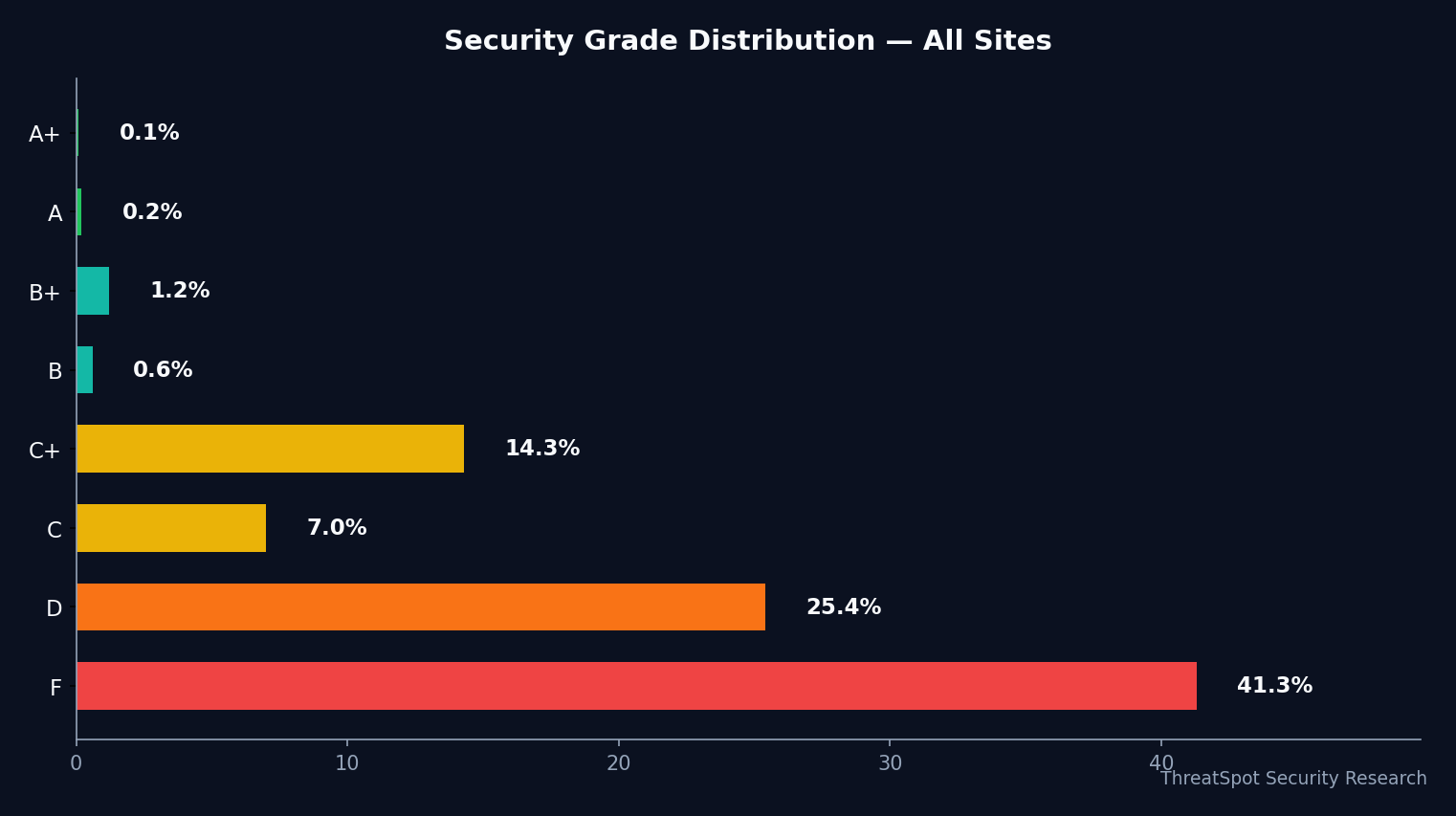
Key Takeaways
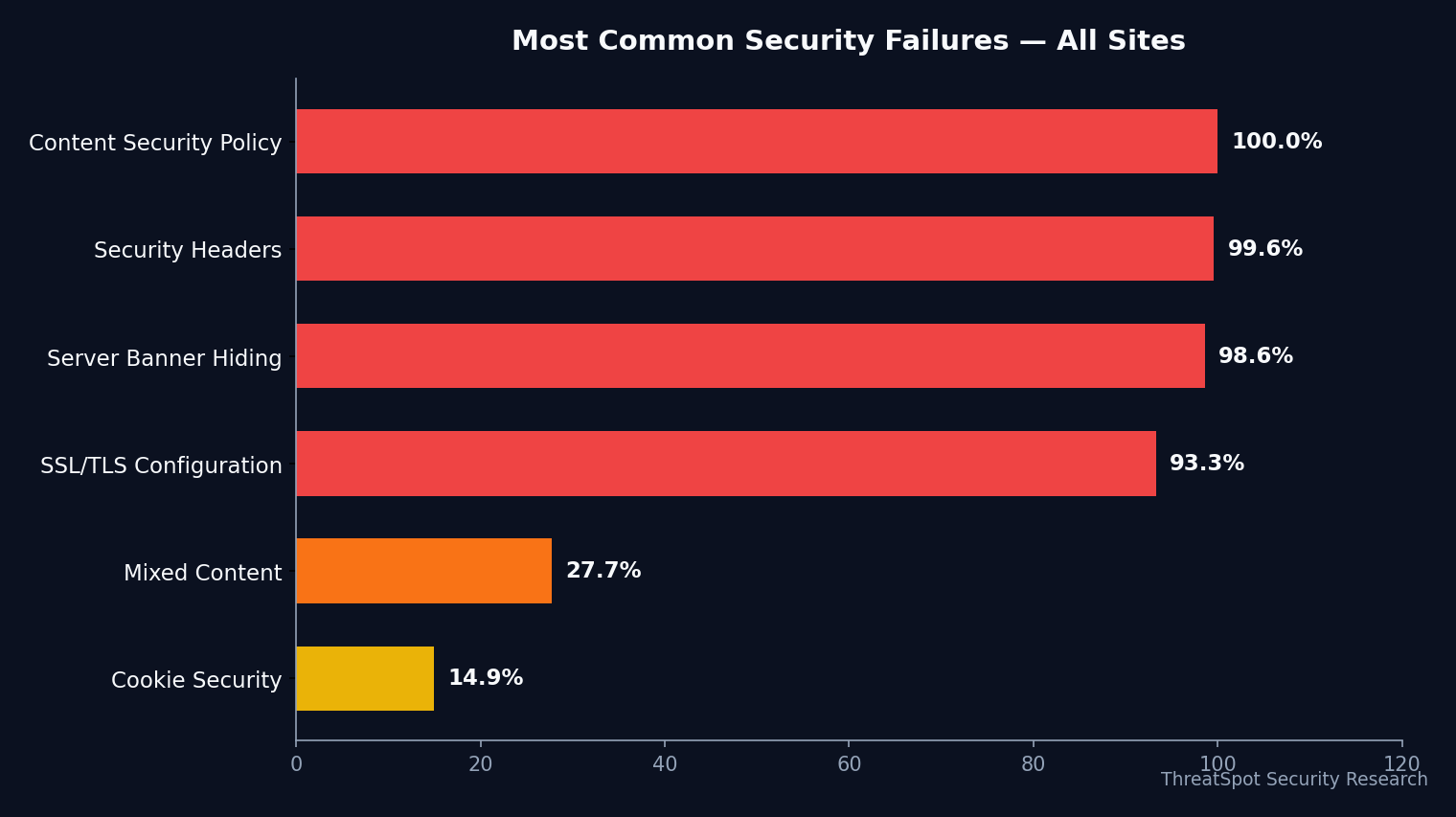
- 93.3% of recent WordPress site scans missed core SSL/TLS configuration
- Most sites use HTTPS but lack HSTS, strong ciphers, or modern TLS
- Only 0.4% got all required security headers right
- Certificate errors remain a low but notable weak point
- Fixes can prevent interception, downgrade, and privacy loss
The Complete WordPress SSL Security Checklist
SSL/TLS Certificates
1. Valid SSL/TLS Certificate Issued and Not Expired
Why it matters: An expired or self-signed certificate breaks browser trust, triggers warnings, and can drive away visitors.
How to check: Visit your site using a private browser window. If you see padlock errors or “Not Secure” warnings, the certificate is invalid or expired.
How to fix: Renew your certificate via your host or provider. Use Let’s Encrypt or a reputable CA.
Priority: Critical
2. No Certificate Name Mismatch (Correct SANs)
Why it matters: Visitors may see domain mismatch errors if the certificate doesn't match your site's domain, damaging trust and SEO.
How to check: Click the padlock, review “Certificate” > “Subject Alternative Name.” All used domains (www/non-www, subdomains) must be listed.
How to fix: Reissue your certificate including all active hostnames (e.g., www and non-www variants).
Priority: High
3. Only Secure (HTTPS) Connections Allowed
Why it matters: Browsers block forms and blocklist mixed-content sites. HTTP fallback weakens overall site security.
How to check: Visit your domain with “http://” instead of “https://.” If it loads, HTTP is still accessible.
How to fix: Add a server redirect (301) forcing all traffic to HTTPS in .htaccess or your server config.
Priority: Critical
Protocols & Cipher Hardening
4. Enforce Modern TLS Protocol (1.2 or 1.3 Only)
Why it matters: Older protocols (SSLv3, TLS 1.0/1.1) can be exploited using well-known downgrade attacks like POODLE and BEAST.
How to check: Run a website security scan or use SSL Labs; verify only TLS 1.2+ is enabled.
How to fix: Update your server or hosting settings to disable older protocols.
Priority: Critical
5. Remove Weak Ciphers (No 3DES, RC4, or NULL Ciphers)
Why it matters: Weak ciphers let attackers intercept or read encrypted data with known exploits.
How to check: Security scanner or SSL Labs will list ciphers; look for warnings about weak suites.
How to fix: Update your server’s ssl_ciphers settings to limit only to strong suites (e.g., AES256-GCM, CHACHA20).
Priority: High
6. Enable Forward Secrecy
Why it matters: Prevents decryption of historic data even if your main server key is compromised.
How to check: Use SSL Labs or a similar tool. Look for “Forward Secrecy Supported.”
How to fix: Ensure ECDHE or DHE suites are enabled (host/DevOps may assist).
Priority: High
7. Disable SSLv3, TLS 1.0, and TLS 1.1
Why it matters: These protocols are obsolete. Browsers and compliance checks will block them.
How to check: Your scanner or host’s report should confirm they’re disabled.
How to fix: Host support or .conf file update—most shared hosts disable by default, but verify.
Priority: Critical
Browser, HSTS, and Security Headers
8. Deploy HTTP Strict Transport Security (HSTS)
Why it matters: HSTS tells browsers to only use HTTPS, reducing the risk of SSL stripping attacks and accidental HTTP fallback.
How to check: Use securityheaders.com or inspect response headers for “Strict-Transport-Security.”
How to fix: Add the HSTS header in your .htaccess or server config—strict minimum: max-age=31536000; includeSubDomains; preload
Priority: Critical
9. Add X-Frame-Options Header
Why it matters: Prevents clickjacking by blocking your pages from being loaded in iframes.
How to check: Check response headers for X-Frame-Options.
How to fix: Add Header always set X-Frame-Options "SAMEORIGIN" in .htaccess or server config.
Priority: High
10. Set X-Content-Type-Options Header
Why it matters: Stops browsers from guessing file types, reducing the risk of downloaded file attacks.
How to check: Scan or view response headers.
How to fix: Add Header set X-Content-Type-Options "nosniff"
Priority: High
11. Enforce Referrer Policy
Why it matters: Controls what information is sent to other sites when a visitor follows links, helping reduce information leaks.
How to check: Check the "Referrer-Policy" response header.
How to fix: Add Header set Referrer-Policy "strict-origin-when-cross-origin" to your config.
Priority: High
12. Set a Strong Content Security Policy (CSP)
Why it matters: CSP greatly limits the impact of XSS attacks—even if attackers insert scripts, browsers will block most code by default.
How to check: Verify with your scanner or response headers; only 0.0% had this correctly set in last month’s scans.
How to fix: Create a minimal CSP: Content-Security-Policy: default-src 'self'; script-src 'self'; (customize for your site’s resources).
Priority: High
Cookie & Session Security
13. Use Secure and HttpOnly Cookies
Why it matters: Prevents session cookie theft via browser or script-based attacks; 79.5% of recent sites scored well here, but gaps persist.
How to check: Inspect your cookies via browser dev tools. Check for Secure, HttpOnly, and SameSite attributes.
How to fix: If missing, set them in your wp-config.php or host config:
define('COOKIE_SECURE', true); define('COOKIE_HTTPONLY', true);
Priority: Critical
14. Set SameSite on All Sensitive Cookies
Why it matters: Blocks cross-site cookie access and prevents CSRF attacks.
How to check: Check cookie attributes in dev tools for SameSite=Lax or SameSite=Strict.
How to fix: Configure in your plugin, theme, or via hosts—recent WordPress versions support this natively.
Priority: High
Mixed Content and Asset Hygiene
15. Eliminate Mixed Content
Why it matters: Mixed content (HTTP images, scripts on HTTPS pages) triggers browser warnings and breaks the padlock for users—even with a “perfect” certificate.
How to check: Browse your site; Chrome or Firefox flag mixed content in the console or security panel.
How to fix: Update URLs in your database or theme to HTTPS. Use plugins like Better Search Replace for bulk fixes.
Priority: High
Server Version Exposure
16. Remove or Obscure Server Version Banner
Why it matters: 21.6% of recent scans found WordPress sites exposing their web server version, making it easier to match exploits to your stack.
How to check: View response headers for “Server: Apache/2.4.41” or similar.
How to fix: Set ServerTokens Prod and ServerSignature Off in Apache, or use the equivalent in NGINX.
Priority: Medium
Ongoing Visibility
17. Perform Routine Website Security Scans
Why it matters: Even a well-configured site can drift as plugins, themes, or server packages change. Consistent scanning identifies new gaps fast.
How to check: Schedule a monthly or weekly site scan via a passive, non-intrusive website security scan.
How to fix: Scan, get tailored advice, and remediate as needed.
Priority: Critical
Quick-Start Summary
| Priority | Action | Time | Impact |
|---|---|---|---|
| Critical | Upgrade to modern TLS only | 15 min | Blocks known downgrade attacks |
| Critical | Deploy HSTS header | 10 min | Stops accidental HTTP fallback |
| Critical | Set Secure, HttpOnly on cookies | 5 min | Blocks session theft scripts |
| High | Remove weak ciphers | 15 min | Hardens against brute-force & MITM |
| High | Add CSP, X-Frame, Content-Type headers | 20 min | Prevents code injection, clickjacking |
| High | Fix mixed content | 15 min | Restores padlock, fixes warnings |
| Medium | Hide server banner/version | 7 min | Lowers targeted attack risk |
| Critical | Schedule a website security scan | 2 min | Pinpoints the next issue fast |
Frequently Asked Questions
Q: What's the difference between HTTPS and full SSL/TLS hardening?
Most sites use HTTPS, but only a few implement strong protocol, cipher, and browser-level protections. Proper SSL/TLS hardening ensures your site uses only modern ciphers, prevents downgrade, and eliminates many browser warnings.
Q: Why are security headers like HSTS and CSP important for WordPress?
Headers like HSTS force encrypted connections, while CSP blocks most injected scripts from running—even if plugin or theme vulnerabilities exist. They significantly reduce the impact of attacks and are essential for complete WordPress SSL security.
Q: How often should I check my SSL/TLS configuration?
Monthly scans are sufficient for most small businesses. Consider increasing cadence after major WordPress or hosting updates, as configuration drift is common.
Q: Can I fix these SSL/TLS issues myself, or do I need my host?
Many items (like certificate errors or plugin-driven mixed content) can be fixed in your WordPress admin or with a plugin. Protocol, cipher, and some header settings often require host support—your support ticket should reference this checklist.
Q: Does SSL/TLS protect my site from all attacks?
No. SSL/TLS ensures encrypted communication and browser trust but does not fix software vulnerabilities in WordPress, plugins, or themes. Combine with broader website security measures for best results.
Final Thoughts
SSL/TLS hardening is no longer optional for small businesses. Out of 215,487 WordPress site scans in the last 90 days, only 6.7% got SSL/TLS configuration right. Running through this checklist will close common browser trust gaps, prevent visible warnings, and materially reduce the chance of data interception.
Ready to check your site? Run a website security scan to get instant visibility into your SSL/TLS setup and see your actionable next steps.
Sources
- OWASP Secure Headers Project – Detailed technical references on important headers
- WordPress.org – HTTPS and SSL – Official WordPress guide to HTTPS
- Mozilla SSL Configuration Generator – Server-side SSL/TLS best practices
- CISA – AR21-099A: Web Server Security – Federal-level guidance for web servers
- NIST SP 800-52 Rev. 2 – TLS recommendation for modern web applications