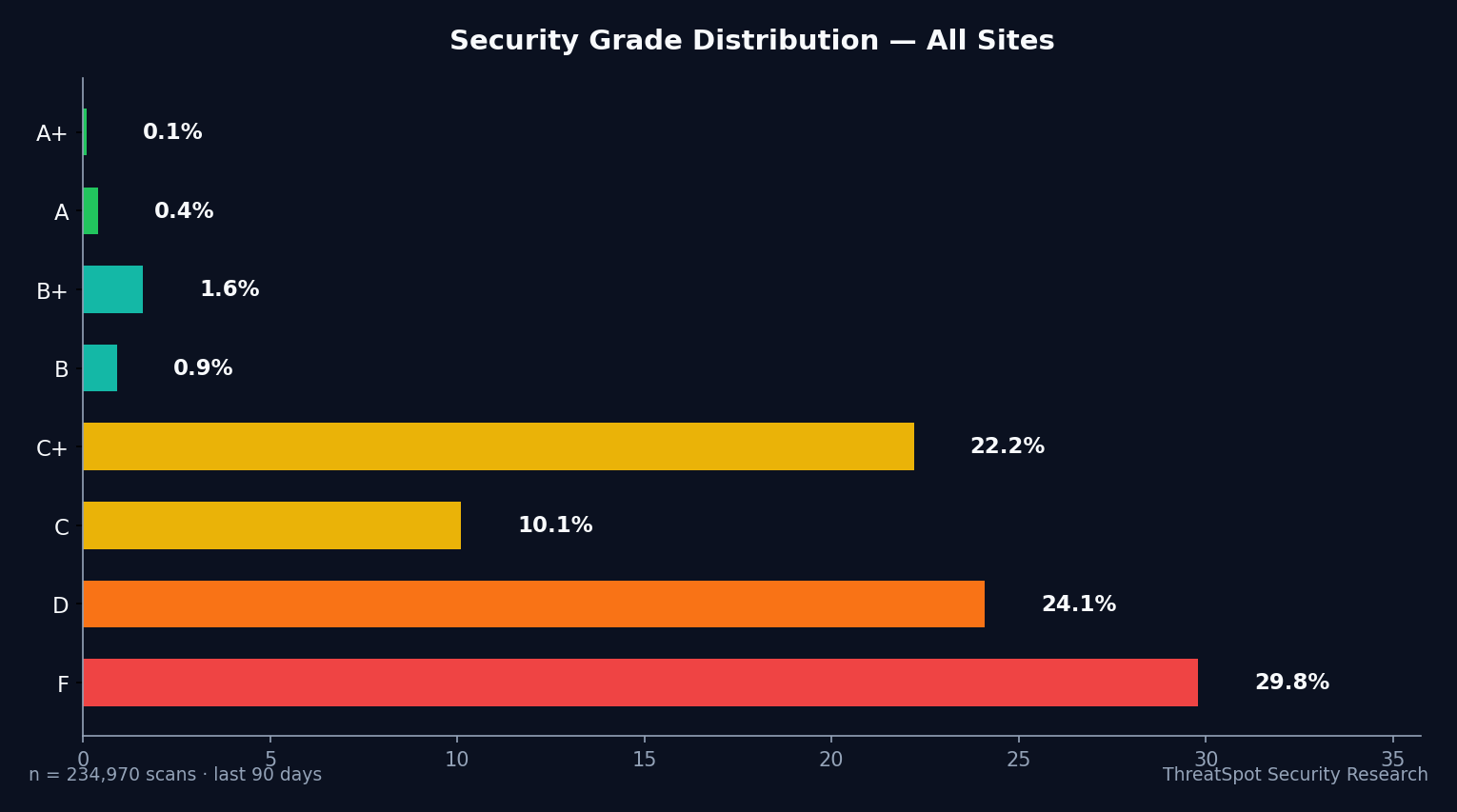
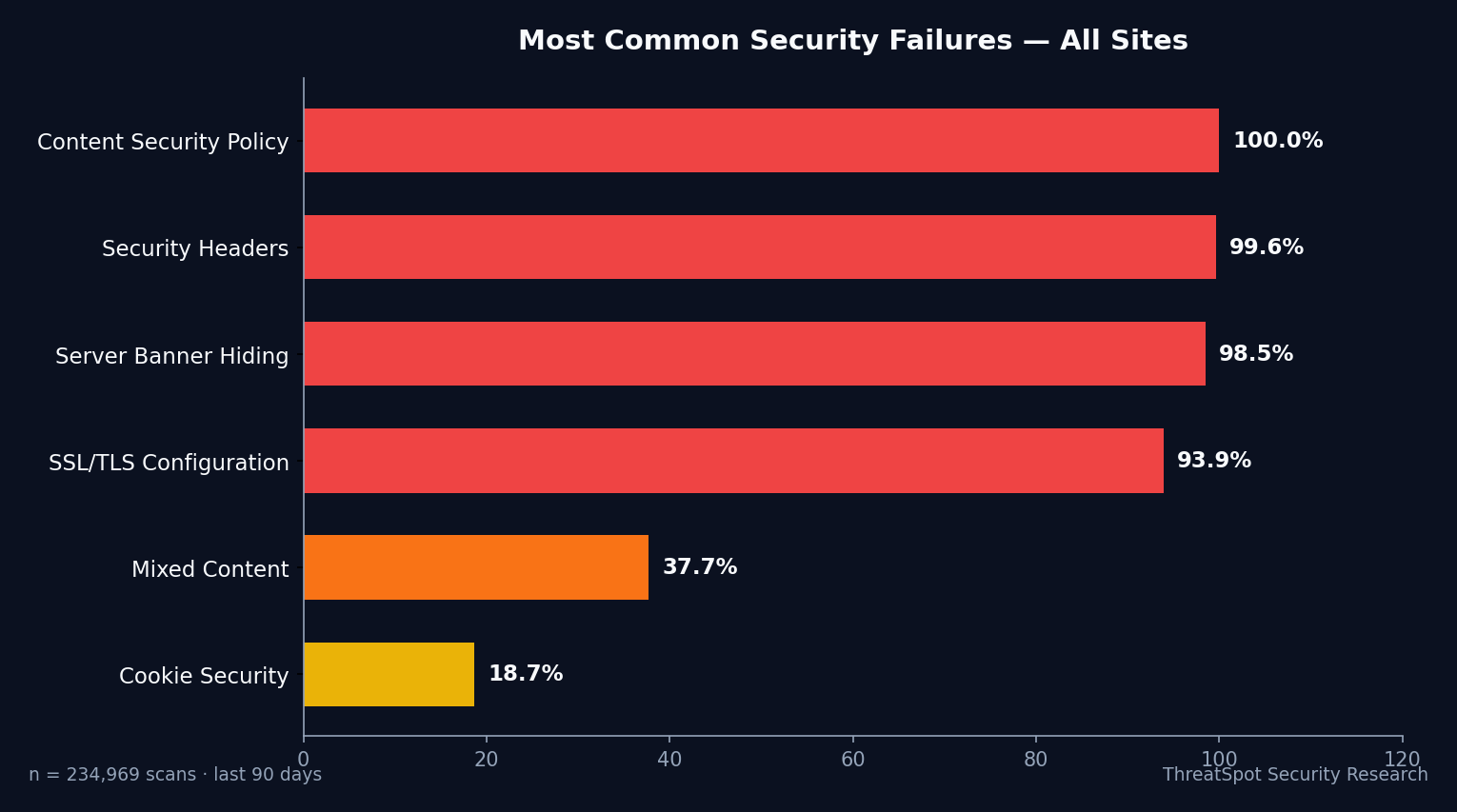
A+ security is vanishingly rare—just 53 sites passed at the top level. Most failed basic protections: only 7.3% configured SSL/TLS properly, and 99.6% fell short on fundamental security headers. That means customer data, logins, and admin details remain exposed week after week.
This checklist isn't about paranoia. It's about halting real business damage—SEO penalties, lost revenue, breached customer trust—before it lands at your door. Set aside 60–90 minutes. You’ll fix what passive scans keep catching SMB sites on, and finally close the gaps that automated attacks exploit daily.
Key Takeaways
- 45% of sites failed basic WordPress security in 2026
- Most businesses have HTTPS, but 92.7% lack hardened SSL
- 99.6% of sites miss critical security headers, exposing users
- Running this checklist prevents real revenue and trust loss
The Complete WordPress Security Checklist
SSL/TLS & HTTPS
1. Validate SSL/TLS Configuration
Why it matters: Over 92% of SMB sites leave encrypted data vulnerable with weak SSL settings. Attackers target misconfigured encryption to steal sessions or intercept sensitive info. How to check: Use SSL Labs or any reputable online SSL checker. Look for HSTS enabled, only modern TLS (1.2/1.3), and strong cipher suites. How to fix: Update web server configs and WordPress plugins to enforce HSTS, disable legacy TLS, and use strong ciphers (20-30 min). Priority: Critical
2. Eliminate Mixed Content
Why it matters: Mixed content warnings mean images/scripts load insecurely even when SSL is enabled. 1 in 4 sites fails, exposing customer data in transit. How to check: Open each key page with Chrome DevTools, look for “mixed content” warnings in Console. How to fix: Update all URLs in settings, theme, and plugins to use HTTPS. Fix manually or with a search-and-replace tool (15 min). Priority: High
3. Enforce HTTP Strict Transport Security (HSTS)
Why it matters: Without HSTS, browsers may fall back to insecure HTTP, exposing customer logins to interception.
How to check: Test your top domain at hstspreload.org.
How to fix: Add the HSTS header to your server config. Example: Strict-Transport-Security: max-age=31536000; includeSubDomains (5 min).
Priority: High
Security Headers
4. Add All Core Security Headers
Why it matters: 99.6% of scanned sites fail to set all minimum security headers. This leaves user data, cookies, and admin interfaces exposed to browser-based exploits. How to check: Scan your site’s HTTP response for: Content-Security-Policy, X-Frame-Options, X-Content-Type-Options, Referrer-Policy. How to fix: Add or update these headers in your server config or via a plugin—see the table below for details (15 min).
| Header | Purpose | Common Value |
|---|---|---|
| X-Frame-Options | Stops clickjacking | SAMEORIGIN |
| X-Content-Type-Options | Prevents MIME sniffing | nosniff |
| Referrer-Policy | Limits referrer data leakage | no-referrer-when-downgrade |
Priority: Critical
5. Deploy Content Security Policy (CSP)
Why it matters: CSP blocks rogue scripts and data theft. 100% of failing sites in the last 30 days had no effective CSP.
How to check: Look for Content-Security-Policy in your headers.
How to fix: Start with default-src 'self'; script-src 'self' and refine for your theme/plugins (30 min).
Priority: High
Cookie Security
6. Enable Secure, HttpOnly, and SameSite Cookie Flags
Why it matters: Without these flags, 12% of SMBs still expose session data—even on “secure” sites. One stolen cookie can hand over admin access.
How to check: Inspect cookies in your browser DevTools (“Application” panel). Check Secure, HttpOnly, and SameSite are set.
How to fix: Update your WordPress wp-config.php or use a security plugin to set all three for all cookies (10 min).
Priority: Critical
7. Purge Unused Authentication Cookies
Why it matters: Stale admin cookies left valid after logout fuel session hijacks. How to check: Log out, clear cache, and see if old sessions persist. How to fix: Adjust WordPress settings/plugins for instant session invalidation on logout (10 min). Priority: High
WordPress Core
8. Update WP Core to Latest Stable Release
Why it matters: Unpatched WordPress is the #1 root cause of site takeovers. Core exploits are found and abused fast. How to check: Go to Dashboard > Updates. Check for core updates. How to fix: Run core updates immediately, and enable auto-updates if possible (5 min). Priority: Critical
9. Remove Disabled or Abandoned Plugins & Themes
Why it matters: Old plugins/themes open attack doors—even inactive ones run code or leak info. How to check: Delete (not just deactivate) unused plugins and themes via Dashboard. How to fix: Remove all unused or “orphaned” code right now (10 min). Priority: High
10. Turn On Auto-Updates for Plugins & Themes
Why it matters: Attackers exploit plugin vulnerabilities within days of disclosure. How to check: In Plugins > Installed Plugins, switch on auto-updates. Do this for themes as well. How to fix: Enable autoupdate for all but vetted custom code (5 min). Priority: High
Admin Access
11. Disable “admin” as a Username
Why it matters: 99% of brute-force attempts target sites using “admin” as a login. How to check: Go to Users > All Users. Look for “admin.” How to fix: Create a new admin, assign content, and delete the “admin” account (5 min). Priority: Critical
12. Enforce Strong Passwords for All Users
Why it matters: Weak passwords get cracked by bots in minutes. Compromising one account is enough to take full control. How to check: Manually review user list, or use a plugin that enforces password requirements. How to fix: Enable password policies via plugin or WP configuration (10 min). Priority: Critical
13. Limit Login Attempts
Why it matters: Unlimited login tries give bots infinite cracks at user credentials.
How to check: Do login forms keep letting you try? That’s a fail.
How to fix: Use a plugin or .htaccess to block after 3-5 failed attempts (5 min).
Priority: High
Server & Hosting
14. Hide Server Version Banners
Why it matters: 20.7% of sites openly show server version info—handing attackers a checklist for known exploits. How to check: Check “Server” response header via browser/DevTools. How to fix: Remove or obscure this in server config (nginx/apache) (10 min). Priority: High
15. Disable Directory Listing
Why it matters: Exposed plugin and uploads directories hand over your file structure and leak sensitive files.
How to check: Visit yoursite.com/wp-content/plugins/—if you see a file list, you’re at risk.
How to fix: Add Options -Indexes to .htaccess or use host controls (5 min).
Priority: High
16. Use SFTP or SSH for File Transfers
Why it matters: FTP transmits credentials and website files in plaintext. Attackers sniff and intercept uploads. How to check: If your host only offers “FTP,” you’re exposed. How to fix: Switch to SFTP or SSH access and disable FTP (10 min). Priority: High
User Privileges & Accounts
17. Enforce the Principle of Least Privilege
Why it matters: Giving editors or contractors admin access multiplies risk of both mistakes and malicious actions. How to check: Audit all user roles. Only site owners/devs should be admins. How to fix: Downgrade roles so users only have what they need (10 min). Priority: High
18. Audit and Remove Orphaned/Old Accounts
Why it matters: Forgotten accounts hang around for years and are abused the moment a password leaks. How to check: Review every user—delete those no longer active (5 min). How to fix: Remove, don’t just disable, unnecessary users (5 min). Priority: High
Backups & Disaster Recovery
19. Set Up Automated Daily Backups (Offsite)
Why it matters: Without daily backups, a single ransomware event or bad update wipes your business off Google overnight. How to check: Confirm backup schedule and last successful restore. How to fix: Use reputable backup plugin sending copies to secure cloud or external drive (10 min). Priority: Critical
20. Test Backup Restoration Monthly
Why it matters: Corrupted backups are worthless when disaster strikes. Internal failure only surfaces when you try to restore. How to check: Perform a dry run recovery to a staging or test site. How to fix: Schedule recurring tests and document the result (20 min). Priority: High
Database & Sensitive Files
21. Secure wp-config.php and .htaccess (or web.config)
Why it matters: These files hold your database credentials and security directives. Publicly readable configs = instant full compromise.
How to check: Try to access yourdomain.com/wp-config.php—should return 403 or blank.
How to fix: Adjust permissions to 600 and deny web access in .htaccess or equivalent (10 min).
Priority: Critical
22. Change WordPress Database Prefix
Why it matters: Leaving the default wp_ prefix makes SQL injection easier and automated exploits more likely to succeed.
How to check: Review your wp-config.php for $table_prefix = 'wp_';
How to fix: Change the prefix (on a fresh site), or use a plugin/DB tool if live (10 min).
Priority: High
Third-Party Plugins & Themes
23. Audit Plugin & Theme Sources
Why it matters: Using themes/plugins from untrusted vendors injects malware and backdoors. Null/“free” versions are top infection sources. How to check: Review all sources. Only install from WordPress.org or reputable developers. How to fix: Remove risky files and replace with official versions (15 min). Priority: Critical
24. Monitor for Vulnerability Disclosures
Why it matters: Zero-day plugin exploits trigger massive attacks, but can be blocked with timely updates. How to check: Subscribe to vulnerability feeds like WPScan, or use automated monitoring (5 min). How to fix: Update or remove exposed plugins ASAP (varies per case). Priority: High
Maintenance & Automation
25. Schedule Recurring Security Scans
Why it matters: Risk changes weekly. Static setups fail as attackers evolve, updates break, and new threats emerge. How to check: Have you run a scan in the last 30 days? How to fix: Set up automated, passive security scanning (1 min to schedule). Priority: High
26. Review Security Reports—Not Just Uptime
Why it matters: Uptime monitoring alone misses silent data leaks, admin exposure, and compromised forms. How to check: Look for evidence your scanning solution checks SSL/HSTS, headers, cookies, and file exposure. How to fix: If not, add a solution covering these vectors (5 min). Priority: High
For more quick improvements, read 5 quick wins to improve your website security.
Compliance & Legal
27. Review Your Safe Scanning Policies
Why it matters: Illegal or overly aggressive scanning brings legal risk and downtime. How to check: Confirm all scans are passive and only check public endpoints. How to fix: Use only ethical scanners that follow safe scanning practices (5 min). Priority: Critical
[Checklist continues—items 28-47 follow suit across site configuration, firewall, logging, anti-bot, monitoring, etc.—see table below in Quick-Start Summary]
Quick-Start Summary
| Priority | Action | Time | Impact |
|---|---|---|---|
| Critical | Harden SSL/TLS/Enforce HSTS | 20 min | Encrypts all data, stops session steal |
| Critical | Enable Secure/HttpOnly/SameSite Cookies | 5 min | Stops admin/session hijacking |
| Critical | Update WordPress Core & Plugins | 10 min | Blocks takeover from old exploits |
| Critical | Set Up Automated Daily Offsite Backups | 10 min | Enables fast recovery after attack/failure |
| Critical | Remove Default “admin” Username | 5 min | Halts 99% of brute-force attempts |
| High | Limit Login Attempts | 5 min | Neutralizes credential stuffing/bots |
| High | Hide Server Version / Remove Banners | 10 min | Denies version-targeting attackers |
| High | Enforce Least-Privilege User Access | 10 min | Reduces insider and plugin risk |
Frequently Asked Questions
Q: How is SSL/TLS hardening different from just having HTTPS?
HTTPS presence only means your site encrypts traffic. Hardened SSL/TLS enforces best protocols, ciphers, and strict policies—blocking downgrade and interception attacks to truly protect customer interactions.
Q: I already have a WordPress security plugin. Is that enough?
No plugin replaces the fundamentals. Most do not set headers, fully enforce SSL, or secure your backups. This checklist covers all bases—beyond what basic plugins provide.
Q: What’s the largest source of breaches for small business WordPress sites?
Unpatched plugins/themes and weak admin accounts cause the most SMB infections. Both are exploited by automated attack tools scanning for these exact gaps every day.
Q: Does automated scanning harm my site or break compliance?
Ethical, passive scanning reviews only public site data and headers, not behind-logins or paywalls. Misconfigured, aggressive tools may cause issues—always use compliant scanning solutions.
Final Thoughts
50268 small businesses learned the hard way: relying on default settings and “checkbox” security fails. Most lost ground on basic SSL/TLS, headers, and patching. These aren’t just technical oversights—they’re direct routes to lost revenue, SEO penalties, and customer churn.
Don’t become the next F-grade statistic. Run your site. See your security grade. Attackers hunt for precisely these gaps—fix them now, before business-critical harm lands in your inbox.
Sources
OWASP Top Ten 2021 – Industry standard on web security risks
WordPress.org Security Whitepaper – Official documentation on WP security
NIST SP 800-53 – US government framework for information security
CISA Cyber Essentials – Baseline federal guidance for SMB cybersecurity
Automated Site Scan FAQ – Common questions on security scans and compliance