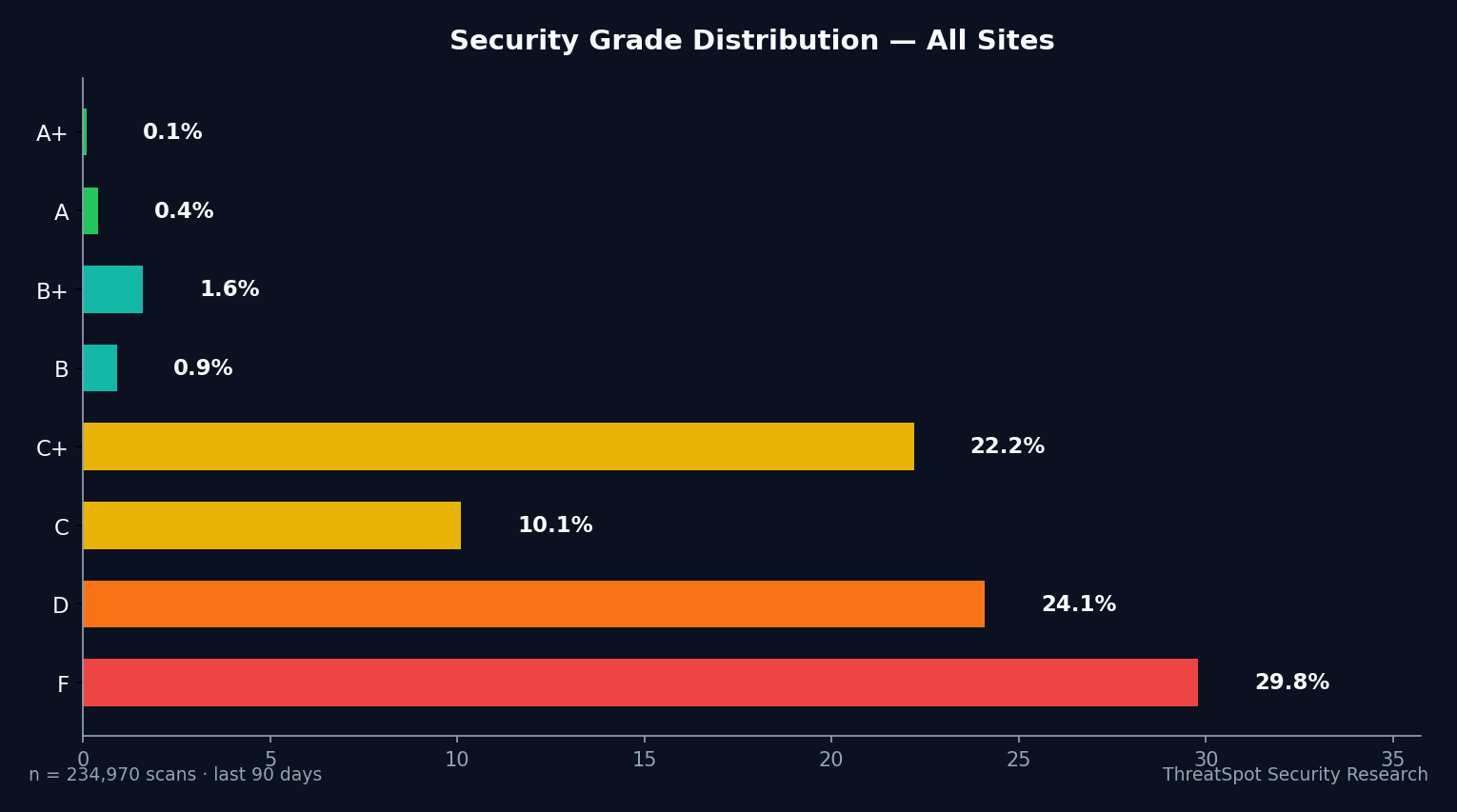
Worse: 93% failed secure plugin configuration, version management, or basic update hygiene. Plugin neglect is the #1 reason small business sites get hacked.
This checklist closes your exposure points, step by step. Tighten your plugin lineup. Protect your revenue, customer data, and reputation—before an attacker makes the decision for you. Completing these actions takes less than 60 minutes for most sites.
Key Takeaways
- 45.9% of small business WordPress sites failed essential security checks
- Secure plugins = no easy target for attackers scanning millions of sites daily
- Most breaches trace to outdated, abandoned, or misconfigured plugins
- Tight plugin control prevents lost revenue and public trust disasters
The Complete WordPress Plugin Security Checklist
Core Updates & Inventory
1. Audit Every Installed Plugin
Why it matters: Hidden vulnerabilities in forgotten plugins are the #1 entry point for attacks. Every plugin is a doorway in. How to check: Review your site’s Plugins page. Make a list of each active and inactive plugin. How to fix: Remove anything you do not use. Repeat this monthly. Time: 10 min. Priority: Critical
2. Remove Inactive Plugins
Why it matters: Inactive plugins still contain code hackers can exploit—even though they aren't used. How to check: Under Plugins > Installed Plugins, look for any marked "Inactive." How to fix: Click Delete to remove them permanently. Time: 3 min. Priority: Critical
3. Update All Plugins Weekly
Why it matters: Outdated code guarantees exposure. Attackers target known plugin vulnerabilities the moment patches drop. How to check: Check for updates at Plugins > Installed Plugins. How to fix: Update all available plugins. Enable automatic updates for trusted plugins. Time: 5 min (recurring). Priority: Critical
4. Review Plugin Source & Credibility
Why it matters: Plugins from untrusted vendors are a direct route to supply chain compromise. How to check: Review plugin sources—use only plugins from the official WordPress repository or credible vendors. How to fix: Replace risky plugins with well-maintained alternatives. Time: 10 min. Priority: High
5. Purge Abandoned Plugins
Why it matters: Abandoned plugins never receive security fixes and become attack magnets. How to check: Visit each plugin’s WordPress.org page. Check “Last updated” date and recent reviews. How to fix: Uninstall anything not updated in the last year. Time: 8 min. Priority: High
Configuration & Permissions
6. Restrict Plugin Installation Permissions
Why it matters: If anyone can install plugins, you lose control over your security footprint fast. How to check: Verify which users have “Administrator” rights in Users > All Users. How to fix: Limit plugin installation to site owners only. Remove unneeded admin roles. Time: 5 min. Priority: Critical
7. Audit Plugin Settings After Each Update
Why it matters: Plugin updates may reset security settings, disabling crucial protections without warning. How to check: After every major plugin update, review its settings page for unexpected changes. How to fix: Document critical configurations. Manually check/reset settings as needed. Time: 2 min per plugin, recurring. Priority: High
8. Disable Plugin Editor in wp-admin
Why it matters: Hackers use the built-in plugin editor to inject malware—if your admin panel is compromised, this is a soft underbelly.
How to check: Confirm if you can access Appearance > Plugin Editor.
How to fix: Add define('DISALLOW_FILE_EDIT', true); to wp-config.php. Time: 2 min.
Priority: High
Update & Patch Management
9. Turn On Trusted Auto-Updates
Why it matters: Manual updates get missed. Auto-updates close vulnerabilities faster than you can log in. How to check: In Plugins > Installed Plugins, enable auto-updates for plugins with a strong update track record. How to fix: Click “Enable Auto-Updates.” Only select reputable plugins. Time: 3 min. Priority: High
10. Review Plugins After Site Migration or Backup Restore
Why it matters: Restoring from old backups often reactivates vulnerable plugin versions without warning. How to check: Check plugin versions after any migration or restore operation. How to fix: Update immediately after any restore. Time: 5 min. Priority: Critical
Privacy, Data, and Exposure
11. Remove Plugins That Store Unencrypted Personal Data
Why it matters: Any plugin saving plain-text emails or passwords opens you up to legal and financial disaster after a breach. How to check: Check privacy settings and data storage practices for each plugin (usually found in documentation). How to fix: Replace with alternatives using modern, encrypted storage. Time: 10 min. Priority: Critical
12. Block Plugin Directory Listing
Why it matters: Public directory listings let attackers see exactly which plugins (and their versions) run on your site. This is recon for targeting.
How to check: Visit http://your-site.com/wp-content/plugins/. If you see a directory, your site’s exposed.
How to fix: Add Options -Indexes to your .htaccess file. Time: 2 min.
Priority: Critical
⚠️ Warning: 20.6% of small-business sites in the past month exposed server version information—giving attackers a precise target list for known exploits.
Compatibility & Risk Reduction
13. Test Plugin Compatibility on a Staging Site
Why it matters: Direct updates on live sites break functionality—and business—when plugins conflict. How to check: Clone your site to staging. Test plugin updates there first. How to fix: Apply tested updates to your live site after validation. Time: Variable, but always test before updating high-risk plugins. Priority: Medium
14. Keep Themes and Plugins Separated
Why it matters: Plugins placed inside your theme directory or vice versa create tangled, hard-to-secure code. How to check: Check that plugins live only in /wp-content/plugins/, not /themes/. How to fix: Move any misplaced code to the correct directory. Time: 5 min. Priority: Medium
15. Document Plugin Use and Changes
Why it matters: Lack of documentation leads to confusion—and accidental re-activation of risky plugins later. How to check: Maintain a basic log listing all installed plugins, versions, usage notes, and admin actions. How to fix: Update this document whenever you add/remove plugins. Time: 5 min (setup), 1 min per change. Priority: Medium
Security Scanning & Monitoring
16. Run Automated Vulnerability Scans Monthly
Why it matters: Most small business sites don’t know they’re exposed until after a breach. Regular scans flag plugin risks before attackers act. How to check: Use an automated website security scanner. Only scan public-facing content per safe scanning policies. How to fix: Schedule monthly scans and act on their results. Time: 10 min setup; 5 min per review. Priority: Critical
17. Set Up Security Notifications
Why it matters: Silence is deadly. Delayed alerts mean attackers exploit vulnerabilities long before you notice. How to check: Enable security alerting features via your security plugin or management service. How to fix: Set your notifications to email or SMS for new plugin vulnerabilities. Time: 3 min. Priority: Critical
Quick-Start Summary
| Priority | Action | Time | Impact |
|---|---|---|---|
| Critical | Remove inactive plugins | 3 min | Eliminate code attackers target |
| Critical | Update all plugins weekly | 5 min | Block exploit attempts via old code |
| Critical | Restrict plugin installation permissions | 5 min | Stop unauthorized plugin risks |
| Critical | Remove plugins storing plain-text data | 10 min | Shield customer info; avoid fines |
| Critical | Block plugin directory listing | 2 min | Hide plugin inventory from hackers |
| Critical | Run vulnerability scans monthly | 10 min | Detect plugin issues before attackers do |
| Critical | Set up security notifications | 3 min | Act instantly on threats |
| High | Purge abandoned plugins | 8 min | Avoid zero-day exposure |
| High | Review plugin source & credibility | 10 min | Remove supply chain infection risk |
| High | Disable plugin editor in wp-admin | 2 min | Block easy malware injection |
| High | Audit plugin settings after each update | 2 min | Ensure no settings reset expose you |
| High | Turn on trusted auto-updates | 3 min | Minimize exposure window |
Frequently Asked Questions
Q: Why are inactive WordPress plugins still a security risk?
Inactive plugins remain installed and fully accessible to attackers if exploited; they simply aren’t running user-facing functionality. Deleting unused plugins eliminates unnecessary code that could host vulnerabilities and malware.
Q: How often should I update my plugins for best security?
Update all WordPress plugins at least once a week. High-value or security-focused plugins should use automatic updates if they're from reputable developers. Never let plugins go unpatched for more than a month.
Q: What if a plugin is “abandoned” but essential to my site?
Abandoned plugins are a red flag. Seek an actively maintained replacement immediately. If that’s not feasible, restrict backend access and monitor for vulnerabilities—then prioritize a switch as soon as possible.
Q: Are free plugins more dangerous than paid ones?
Price doesn’t equal security. Many free plugins are well-coded and maintained, while some premium plugins are quickly abandoned. Focus on update history, reviews, and support activity, not just price.
Q: Do automated security scans impact my site’s performance?
Reputable scanners targeting only public-facing content have negligible performance impact. Always use safe scanning methods to avoid downtime or disruption.
Final Thoughts
Neglecting plugin security is not an option when 45.9% of small business sites fail essential checks—and attackers are scanning for these weaknesses around the clock. Plugin mismanagement can bankrupt a business through lost sales, regulatory penalties, and irreparable customer distrust.
Run your site through this checklist now. Find every weak point before attackers use it against you. Prioritize plugin security not just as a technical box to tick, but as the insurance policy for your revenue, customers, and reputation.
Scan your site. See your grade.
Sources
OWASP Top 10 – Authoritative guide to the most critical web security risks
WordPress Plugin Developer Handbook – Official best practices for WordPress plugin architecture and safety
NIST Secure Software Development Framework – Federal standards on secure code and software lifecycle
CISA Web Application Security – US government guidance for protecting business websites
How Automated Security Scans Help with Compliance – Deep dive on how vulnerability scans support legal and regulatory requirements
For more quick wins, see our WP security basics guide.